

AI Tutorial
How to Automate Your Gmail Inbox Using Google Workspace Studio
Learn how to automate your Gmail inbox using Google Workspace Studio. Label emails, extract data, and draft replies with AI, no third-party tools required.
Share
This guide explains how to use Google Workspace Studio to streamline your Gmail workflow. By setting up automated flows powered by Gemini, you can organize incoming emails, extract key information, and even prepare replies, without relying on external tools.
Who This Is For
- Individuals who receive a high volume of emails and want automatic sorting
- Freelancers and small business owners managing clients, invoices, and vendors
- Operations or finance teams needing structured data from emails
What You’ll Build
- An automated labeling system for incoming emails
- Optional data extraction workflows (e.g., invoices to spreadsheets)
- AI-assisted draft replies for faster communication
Requirements
- A Google Workspace account with access to Workspace Studio
- Optional: A Google Sheet for storing extracted data
Step 1: Explore Built-In Templates
Visit the Workspace Studio dashboard and review the prebuilt automation templates available.
Examples include:
- Daily inbox summaries
- Alerts for emails from important contacts
- Automatic labeling and prioritization
These templates are a quick way to understand how the system works before creating custom workflows.
Tip:
You can enhance these templates by linking them to a Google Sheet containing key contacts, making updates easier without modifying the workflow itself.
Step 2: Create an Auto-Labeling Workflow
Start a new workflow and set the trigger to run whenever a new email is received.
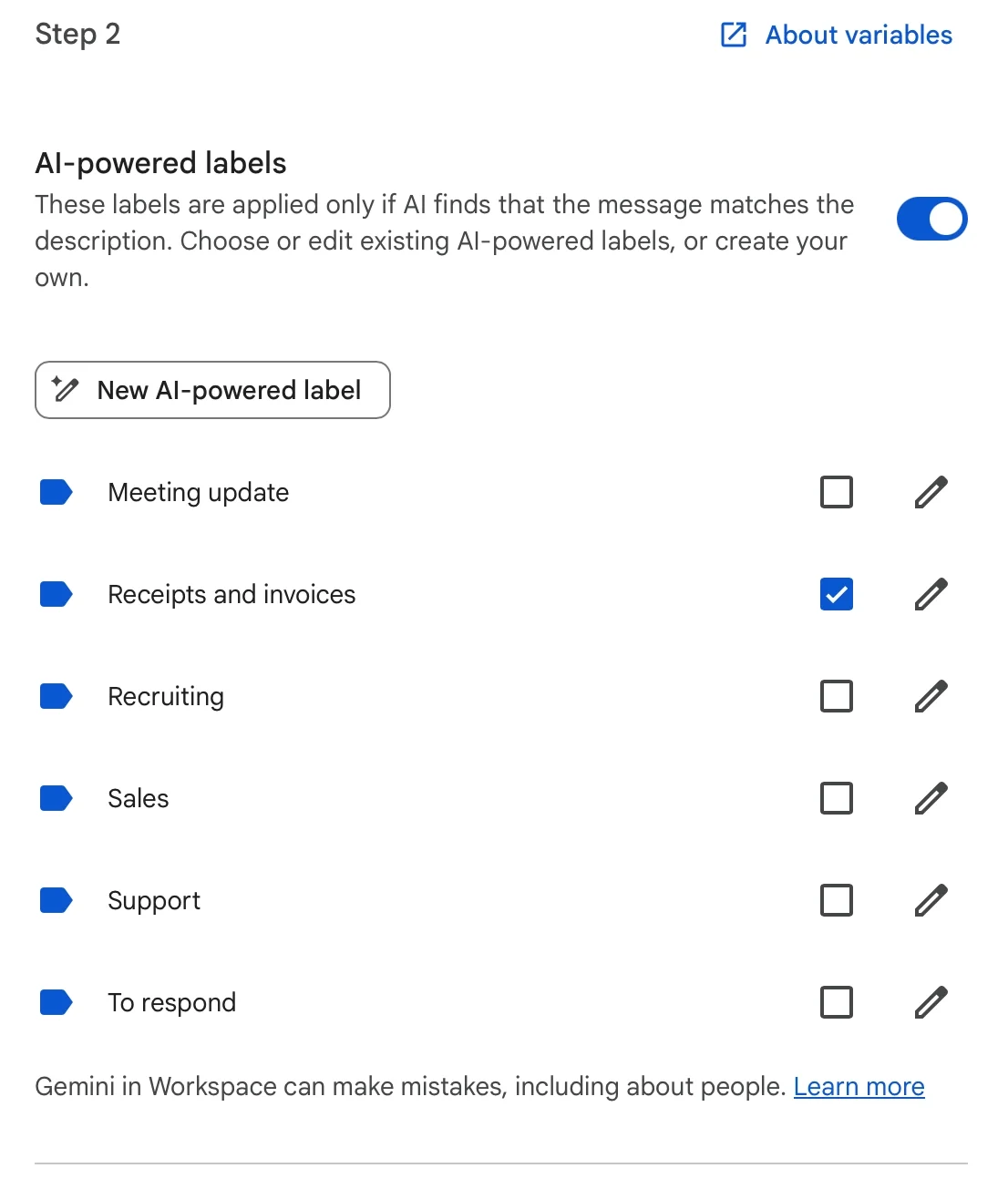
Add a labeling step and enable AI-powered categorization. Choose only the categories you actually need, such as:
- Invoices and receipts
- Newsletters
- Client communications
You can customize each category by defining what qualifies for that label.
Once set up:
- Activate the workflow
- Send a test email
- Check the activity log to confirm it works
Tip:
Automation may take a few minutes to trigger after receiving a new email.
Step 3: Extract Key Information (Optional)
You can extend your workflow by pulling structured data from emails.
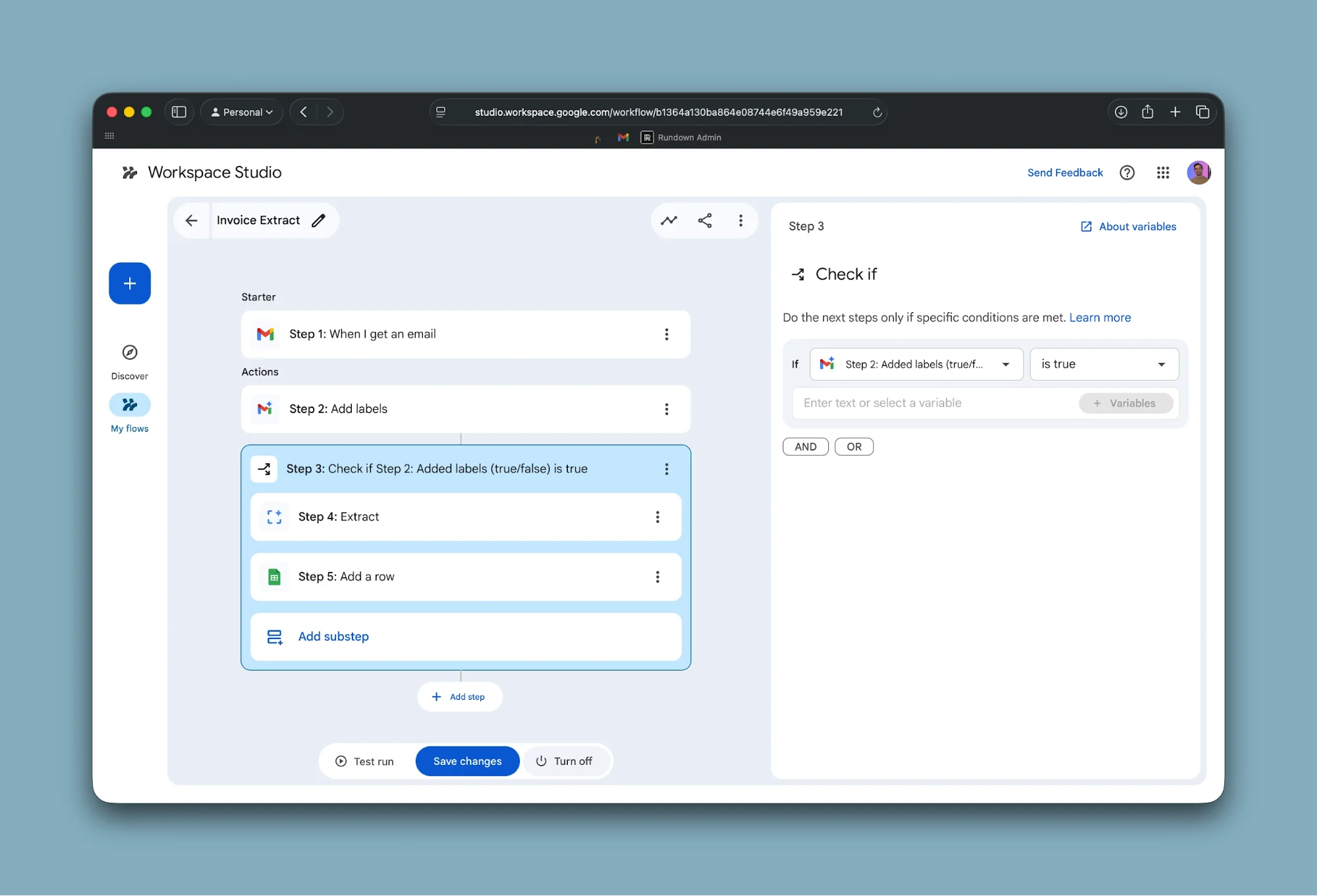
For example, to process invoices:
- Create a label specifically for invoice-related emails
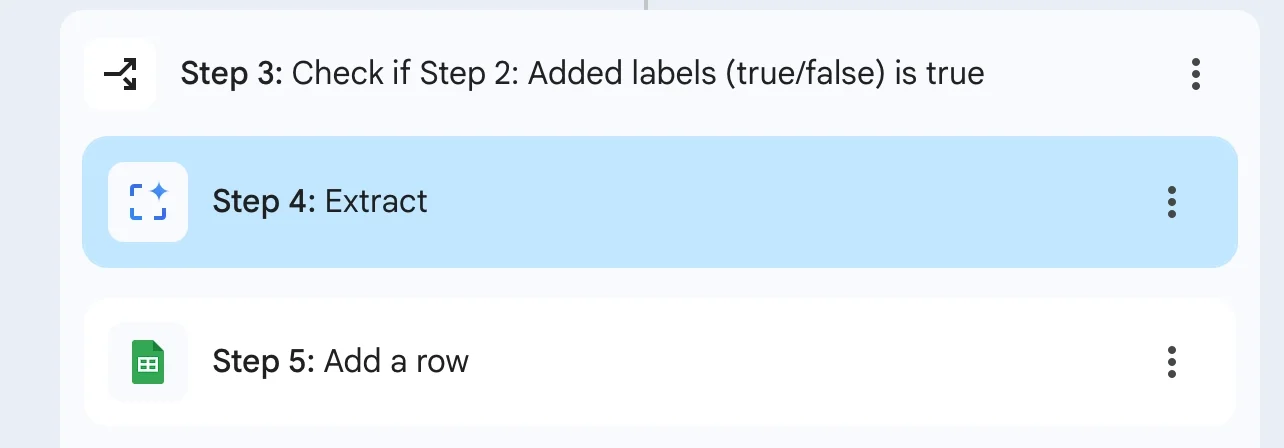
- Add a conditional step that runs only when that label is applied
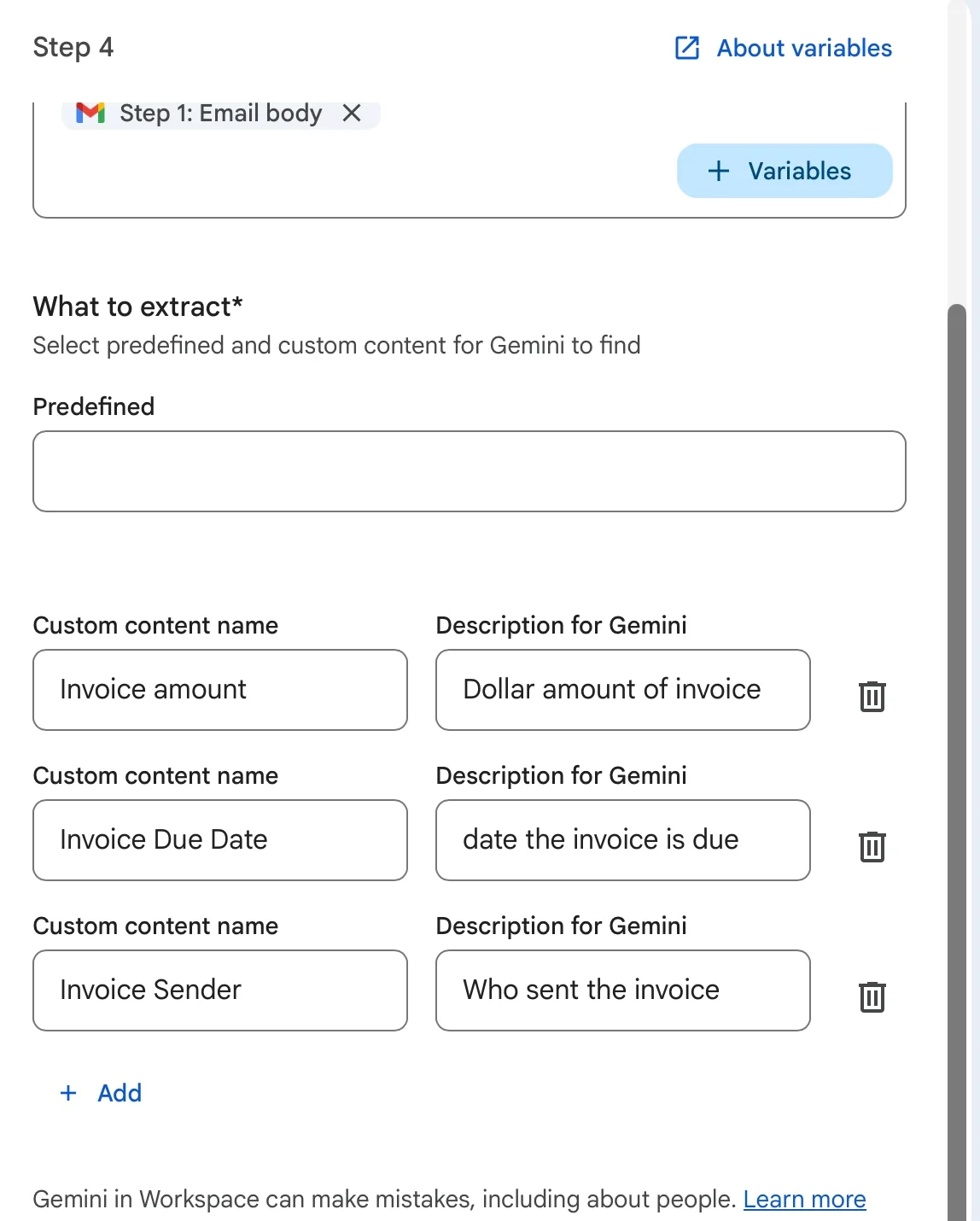
- Use an extraction step to capture details like:
Amount
Sender
Due date - Send this data to a Google Sheet by mapping each field to a column
This creates a fully automated pipeline from email to structured data.
Important:
Ensure extraction and logging steps are placed inside the conditional branch so they only run when relevant.
Step 4: Generate Draft Replies (Optional)
You can also automate response drafting using Gemini.
Add a step that generates a reply based on the email content.
Example Instruction
Analyze the email and create a professional response confirming receipt and outlining next steps.
Then connect this output to a draft email action. The message will appear in your drafts folder for review before sending.
Note:
The system cannot send emails automatically to others, but it can prepare drafts for you to approve.
Tips for Efficient Usage
- Use simple filters (like sender or keywords) for basic tasks to conserve AI usage
- Reserve AI-powered steps for emails that require interpretation
- Monitor workflow limits and adjust accordingly
Advanced Use Cases
Once comfortable, you can expand your setup:
- Build multiple workflows for different email categories
- Track various data types (client requests, vendor quotes, etc.)
- Combine Gmail automation with other Workspace tools for a full workflow system
Final Thoughts
By automating your inbox, you shift from reacting to emails to managing them proactively. This approach reduces manual work and ensures important information is captured and organized consistently.

Editorial Staff
The Editorial Staff at AIChief is a team of Professional Content writers with extensive experience in the field of AI and Marketing. AIChief was Founded in 2025, AIChief has quickly grown to become the largest free AI resource hub in the industry. Stay connected with them on Facebook, Instagram and X for the latest updates.



