

AI Tutorial
Build a Competitor Intelligence Database Using Claude Cowork
Learn how to set up a self-updating competitor database using Claude Cowork for analysis, battlecards, and market insights.
Share
In this guide, you’ll learn how to build a competitor intelligence database using Claude Cowork. Once set up, the system updates itself; just load the prompt files and let Claude handle the structure in minutes.
Who This Helps
- Founders and executives who want a real-time view of competitive threats
- Sales teams that need battlecards to address objections
- Small teams without a formal competitor research workflow
What You’ll Create

What You Need Before Starting
- Claude Desktop app (Mac only)
- The provided prompt kit
- A text editor for reviewing your database
Step 1: Set Up the Workspace
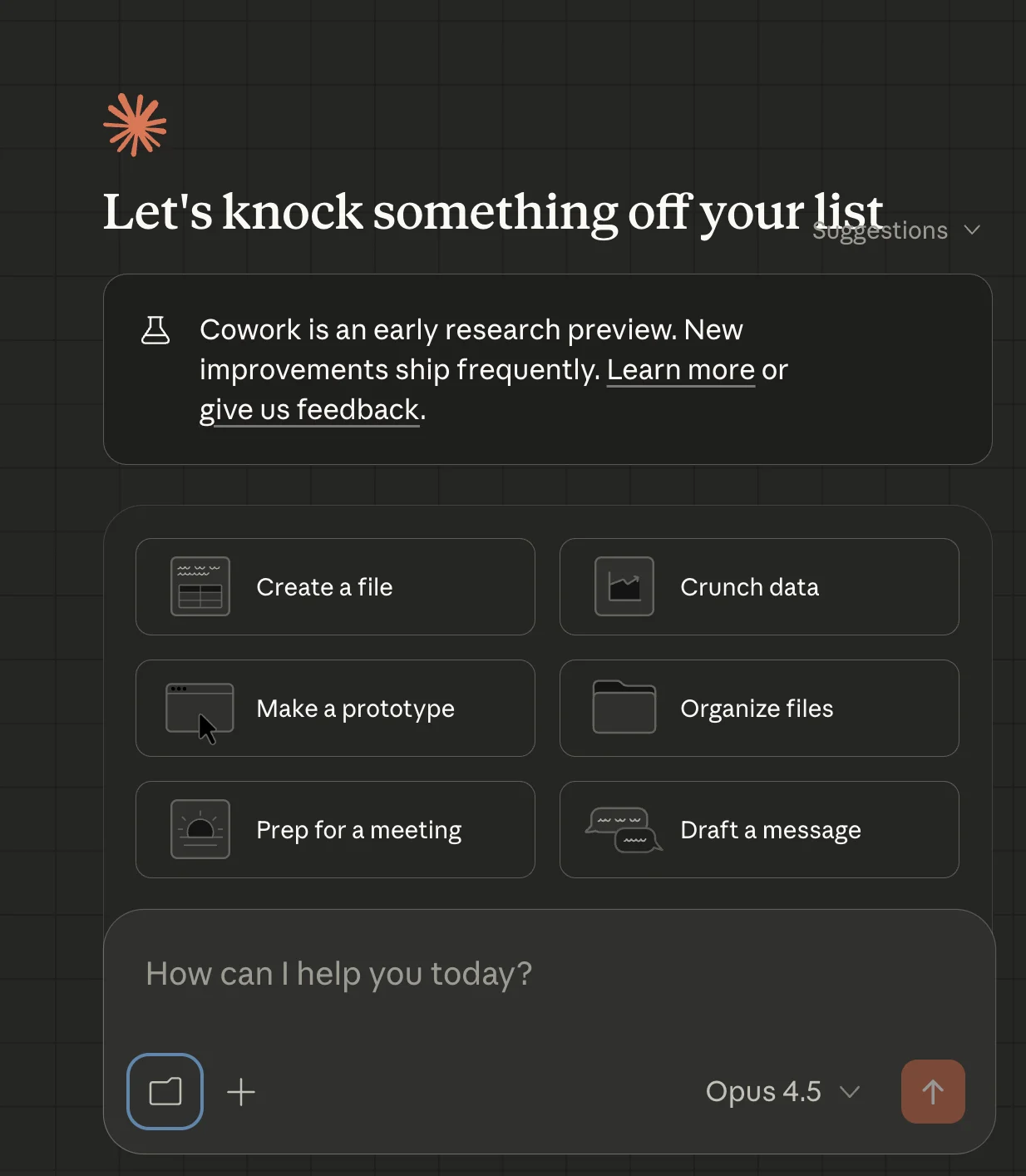
Create a folder named competitor_teardowns and download the prompt kit. It should include six markdown files. Place them inside your folder.
Open the Claude Desktop app, go to the “Cowork” tab, and select your folder.
Then prompt:
Read the SOP file and structure the folder as outlined.
Step 2: Run Your First Analysis
With the system in place, you can begin generating reports.
This process is called a “killsheet,” which is essentially a detailed competitor analysis. It’s best used with the latest Opus model.
When to use: quarterly reviews, competitor funding updates, or after losing a deal
Choose a target competitor (name + URL), then prompt:
Start an analysis on [competitor] using [domain] [additional domains if needed]
Tip: Before running your first report, create a Context.md file describing your company and offer. This helps Claude understand your positioning when analyzing competitors.
Step 3: Review the Output
Open your competitor_teardowns folder in a code editor such as Cursor.
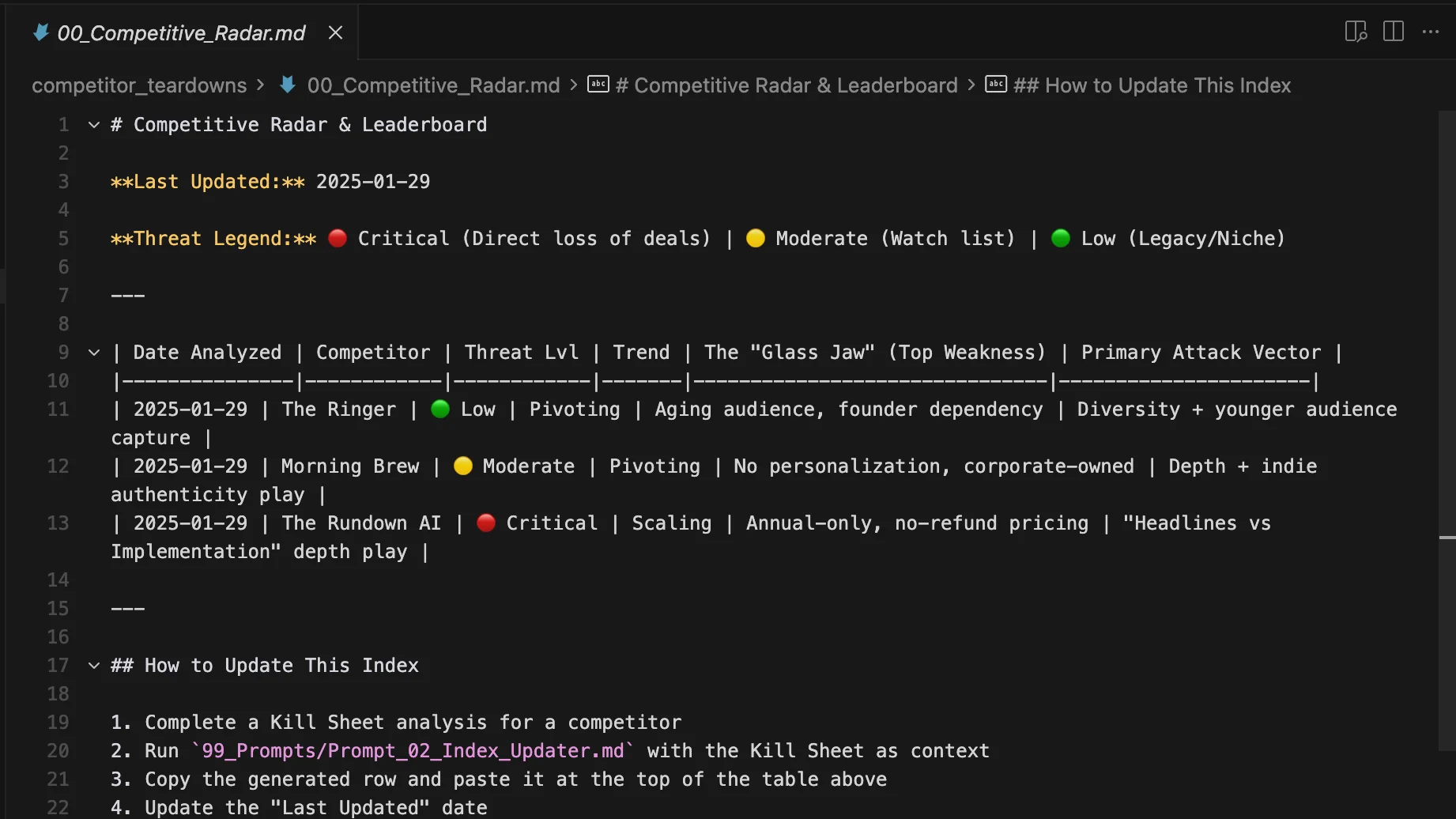
You’ll see a new folder inside 01_Competitors containing a dated killsheet.
Each new analysis also updates the Competitive Radar file, giving you a high-level overview of your market.
Tip: You can ask Claude to convert reports into PDFs or modify the SOP to do this automatically.
Step 4: Generate Sales and Marketing Assets
After creating a killsheet, use the included prompts to support your team:
- Prompt_03_Battlecard_Generator: Creates objection-handling scripts for sales
- Prompt_04_Comparison_Page: Generates comparison-style landing page content for marketing
Next Steps
Import your kill sheets into NotebookLM to generate quarterly competitor reports. You can use features like slide decks or podcast-style summaries to present insights.

Emily Newton
Emily Newton is an experienced Editor-in-Chief who has spent the last decade sharing her insights on science and technology advances through platforms like IoT for All and DZone. She is deeply interested in showcasing how connected technologies and smart ecosystems transform modern businesses. When she isn’t writing, Emily enjoys walking local trails, playing video games, or curling up with a good book.



