

AI Tutorial
Automate Gmail Draft Creation with Zapier and Google Sheets
Learn how to automatically create Gmail drafts from Google Sheets using Zapier to save time on repetitive email workflows.
Share
This guide explains how to use Zapier with Google Sheets to create email drafts in Gmail automatically. It’s a simple yet effective workflow that pulls contact data from a sheet and generates ready-to-send drafts. This approach is especially useful for repetitive outreach to subscribers, leads, or event attendees.
Best suited for:
- Coaches and consultants handling client communication
- Newsletter creators sending updates
- Sales teams managing outreach
- Anyone tired of writing emails manually
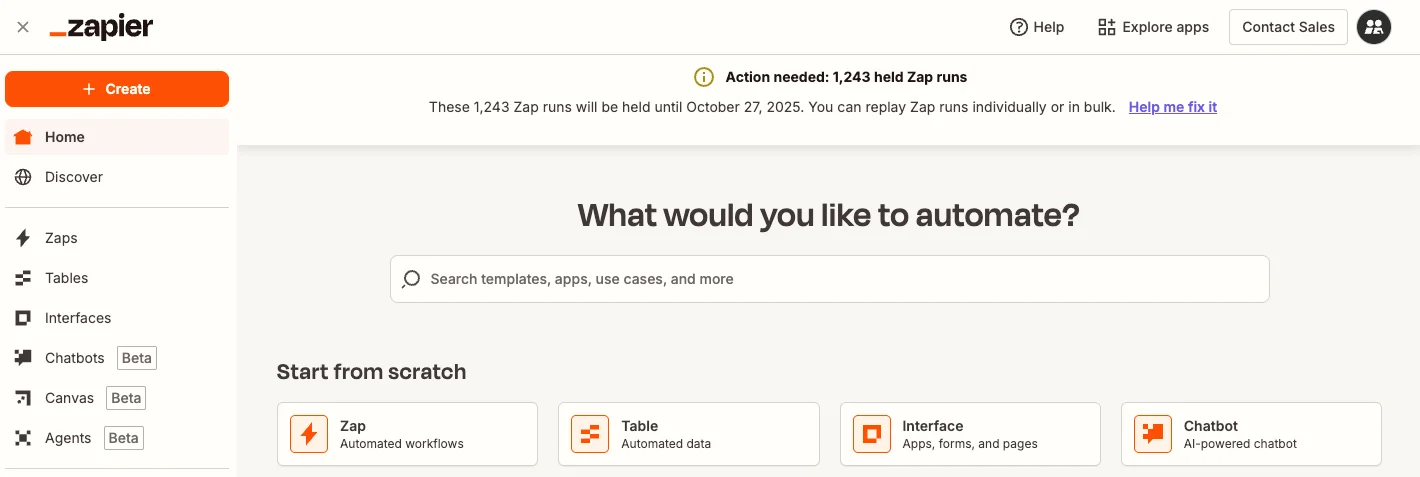
Step 1: Set up your Zap
Start by opening Zapier.
Click Create a Zap if you’re starting fresh, or edit an existing one. Creating a new Zap gives you full control over each step.
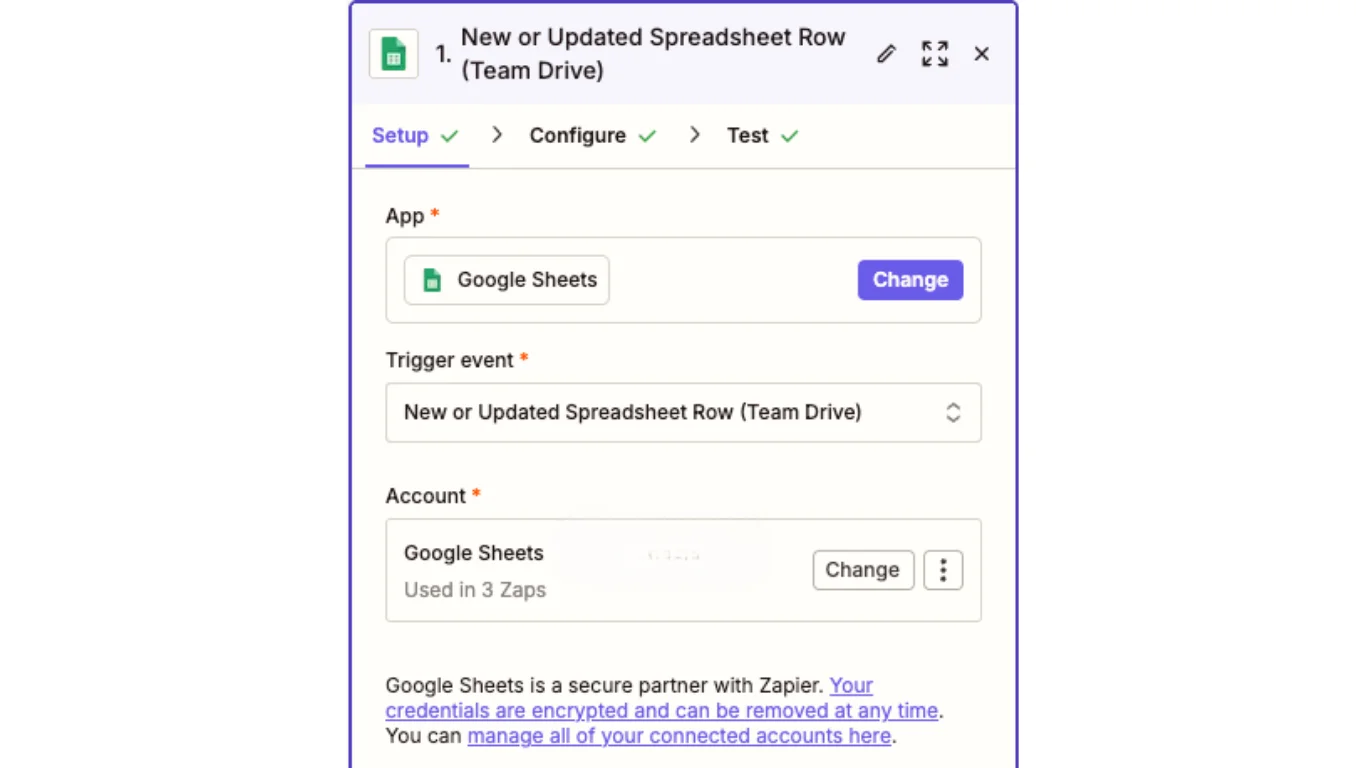
Step 2: Configure triggers and data source
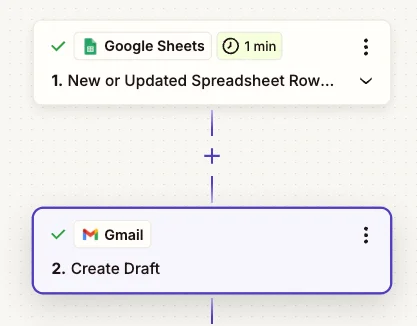
- Set up your Trigger App, which provides the data for your workflow.
- Select Google Sheets as the app
- Choose the event: New Spreadsheet Row
- Connect your account and select the correct spreadsheet
For example, choose your file (e.g., “ChatGPT Tips”) and the relevant tab (e.g., Sheet1)
Pro Tip: Use “Refresh & Find New Records” to ensure Zapier detects the latest entries. Skipping this step can cause missed data.
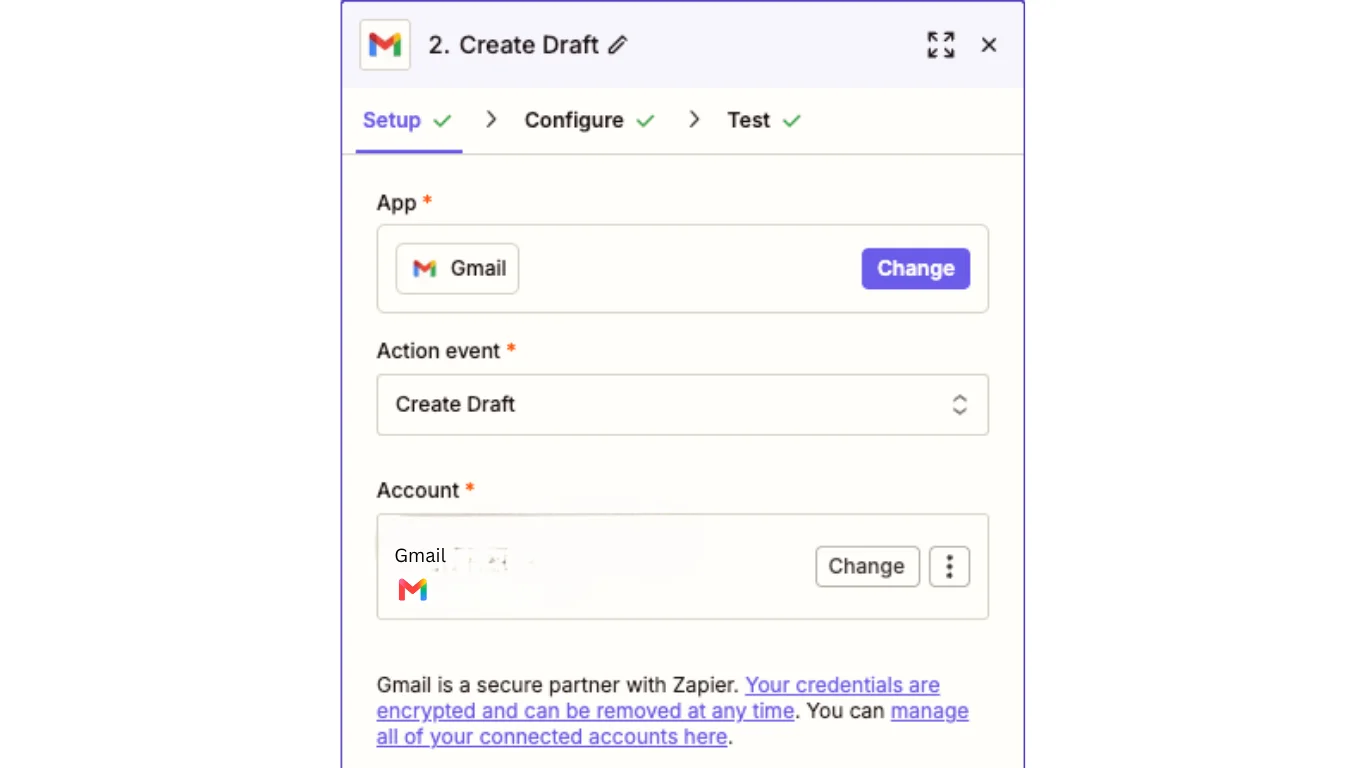
Step 3: Create the Gmail draft
Add an Action Step using Gmail.
Select Create Draft (preferred over auto-send for better control), then connect your account.
Configure the draft:
- To: Map the email field from your sheet
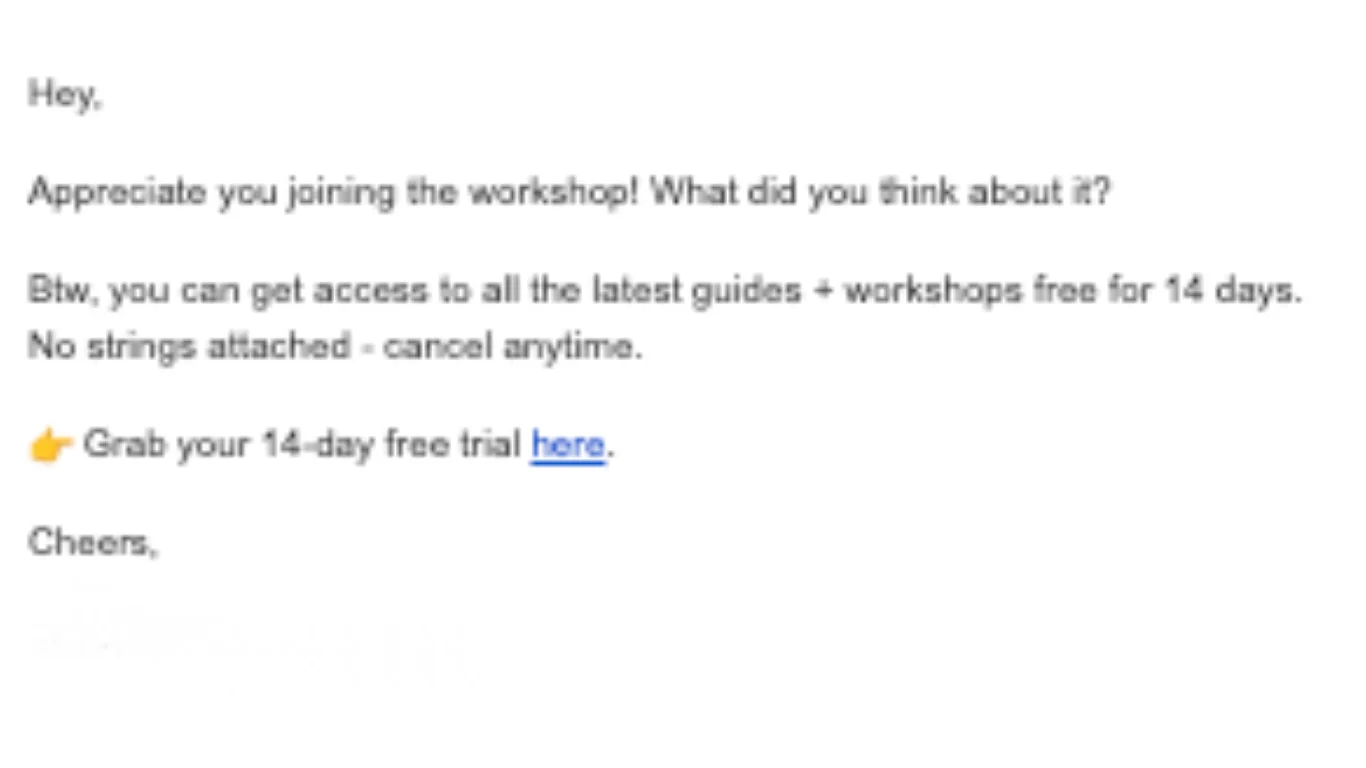
- Subject: Set a relevant subject line (e.g., “Thanks for joining the workshop”)
- Body: Use HTML formatting for cleaner layout, links, and styling
After testing, Zapier will generate a formatted draft with your subject, message, and links included.
Step 4: Test and refine
To test the workflow:
- Add multiple new rows to your Google Sheets (e.g., 10 contacts)
- Click Run in Zapier
- Zapier will detect new entries and instantly create matching drafts in Gmail
This eliminates manual copying and repetitive writing.
Step 5: Finalize and reuse your Zap
Once everything works:
Save and name your Zap clearly (e.g., “Sheets to Gmail Drafts”)
Duplicate it for different campaigns or audiences
Pro Tip
Even simple automations can save significant time. This workflow reduces repetitive email tasks and streamlines communication without extra effort.

Editorial Staff
The Editorial Staff at AIChief is a team of Professional Content writers with extensive experience in the field of AI and Marketing. AIChief was Founded in 2025, AIChief has quickly grown to become the largest free AI resource hub in the industry. Stay connected with them on Facebook, Instagram and X for the latest updates.



